Author
Carolyn Gjerde
Part 2 of a series on Copilot in SharePoint Skills. If you're new to Skills, start with Extending AI in SharePoint with Skills.
In Part 1 of this series, we covered what Skills can do. The response we heard most after that post was some version of: "This sounds useful. Where do we actually start?"
This post answers that and not from theory, but from real implementation experience. With general availability expected in June, this is your window to set things up properly.
General availability lands in June. You have time to do this right.
Two Things to Sort Out Before You Build Anything
Skills runs on top of Copilot in SharePoint, Microsoft's AI capability for SharePoint sites, which means two things need to be confirmed before your team can create or run a single Skill.
- AI in SharePoint must be enabled
It's off by default. A SharePoint or Global Admin needs to opt in manually. - Users need Microsoft 365 Copilot licenses
Skills don't work without it. If licensing is still unresolved, that decision comes first.
One more thing worth understanding: there is no separate admin toggle for Skills specifically. You can't turn Skills off while leaving AI in SharePoint on. Your governance lever is permission design: who can create Skills, who can run them, and where they live. We'll get into what that looks like in practice a little further down.
Not Every Process Needs a Skill: How to Pick the Right One to Start With
The most common mistake in early Skills rollouts isn't technical. It's starting with the wrong processes.
When a new capability arrives, the instinct is to reach for whatever is most painful or most visible. That's understandable, but not always right. Skills works best on a specific kind of problem, and if you start with the wrong one, you'll build something that gets ignored and conclude the technology doesn't work. It does. You just picked the wrong starting point.
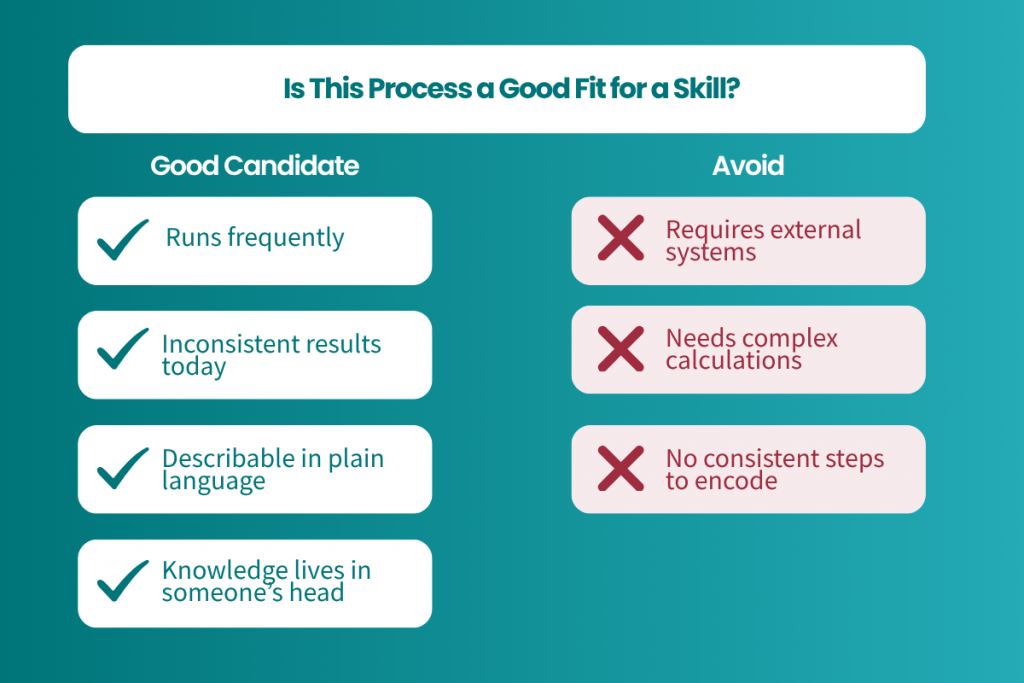
A process is a good candidate when it meets most of these:
It runs often. The value of building a Skill compounds with repetition. A Skill used daily pays for itself quickly. A Skill used once a month is hard to justify and harder to keep up to date.
It currently produces inconsistent results. If different people running the same process produce different outputs, that inconsistency has a cost: rework, quality variance, time spent checking whether something was done right. Skills eliminates the variance.
The steps can be described in plain language. Skills are written as natural language instructions. If the process requires judgment calls that can't be articulated, it isn't ready yet. Start with the parts that can be described clearly.
The knowledge lives in someone's head. Processes that depend on a specific person's institutional knowledge are both the riskiest and the most valuable candidates. When that person is unavailable, or eventually moves on, the process goes with them. A Skill makes it permanent.
A process probably isn't a good starting point if it requires accessing external systems (Skills stays inside SharePoint), involves custom calculations or logic, or is genuinely different every time it runs.
What "Good" Skills Look Like
Our team has had early access to Skills ahead of the June general availability, and we've been testing it across a range of use cases. Here's what we're seeing in the Skills that work well.
They're built backward from the output. The best Skills start with a clear picture of what "done" looks like: a structured summary document, a populated list, a checklist with gaps flagged. Then they describe the steps that produce it. Vague instructions produce vague output. Specific ones don't.
They include quality checks, not just steps. A Skill that surfaces what's missing is more useful than one that just processes what's there. A document review Skill that flags incomplete metadata, missing required sections, or fields that haven't been filled is the kind teams actually rely on.
They're named like tools, not features. "New Project Setup" gets used. "Document Review Checklist" gets used. "New Skill 4" does not. Skills can be auto-suggested based on context, but they can also be called by name, so the name needs to tell someone exactly what they're reaching for.
They take a few rounds to get right. This is worth setting expectations around. Building a good Skill isn't a single prompt. It's a conversation. You describe what you want, the AI drafts the Skill, and then you refine it: clarifying the input format, tightening the output structure, adjusting the level of detail. That iteration is normal and worth the time. A Skill you've refined through a few rounds will outperform one you saved on the first attempt.
How to Create a Skill
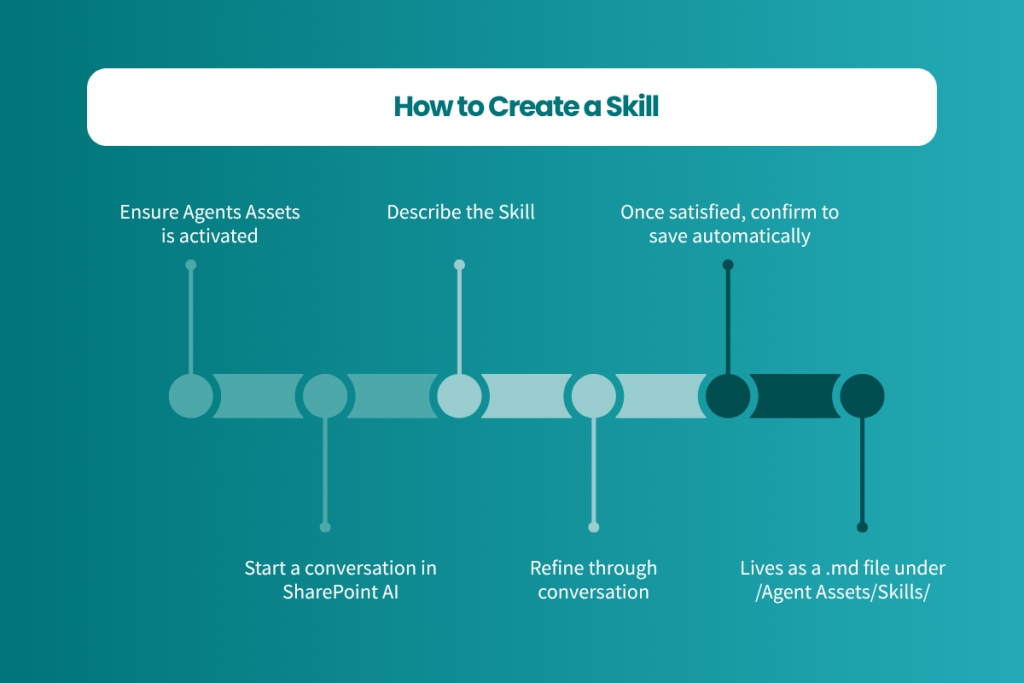
Before you can create a Skill, the Agent Assets feature needs to be enabled on your site collection. This is separate from the AI in SharePoint opt-in at the tenant level. It is a site-level step, so it needs to be done for each site where you want Skills to live.
Once that's in place, here's what the creation process looks like:
Open SharePoint AI and start a conversation. Skills are created through the same chat interface your team uses to interact with AI in SharePoint. There's no separate Skills builder or admin panel.
Describe the Skill you want. Start with "Create a skill to…" and describe the process in plain language. For example: "Create a skill to review documents in this library, check for required fields, flag any that are missing, and log the results to a tracking list." The more specific you are about the output you want, the better the first draft will be.
Refine through conversation. The AI will draft the Skill and show you what it's captured. This is where the real work happens. Review the draft and push on the details: Is the input format right? Is the output structured the way your team needs it? Is the level of task granularity useful? Expect two or three rounds of back-and-forth before the Skill is doing exactly what you want.
Confirm to save. Once you're satisfied with the Skill description, confirm it and the AI saves it automatically.
Where it lives. Skills are stored as Markdown files in your site's Agent Assets library, at /Agent Assets/Skills/. Each Skill gets its own folder with a SKILL.md file inside it. This is more than a technical detail. It is a governance advantage. Because Skills live as ordinary files in SharePoint, they're subject to the same permissions, retention policies, and sensitivity labels as everything else in your environment. Skills are governed within your existing SharePoint and Microsoft 365 environment. What your team already knows how to manage, they already know how to manage here too.
Once a Skill is saved, anyone with view access to the site can run it, either by calling it by name or by describing a task and letting the AI suggest the right Skill automatically.
Governance: The Setup That Protects You Later
Because Skills live in SharePoint like any other file, your existing governance model applies. The advantage is that you don't need to build something new. The risk is that "it handles itself" is not a governance strategy.
The model that works in practice: a small group with edit access to the Agent Assets library creates and maintains Skills; a broader team with view access runs them. Same principle as content ownership anywhere else in SharePoint. What's new is applying it explicitly here, before Skills go live rather than after.
A few things worth configuring before you start building:
Sensitivity labels on the Agent Assets library. If your organization uses sensitivity labels, apply them to the library so Skills files inherit the right classification from the start.
Retention policies. Skills files are content. If your organization has retention policies for process documentation, Skills files belong in scope.
Named owners for every Skill. Skills that no one is responsible for maintaining will drift out of date. Assign ownership at creation, not after the fact.
A lightweight review cadence. Processes change. Quarterly is usually enough to catch Skills that have become stale or no longer reflect how your team actually works.
One thing worth getting ahead of: because anyone with edit permissions on the Agent Assets library can create Skills, it's worth deciding who has that access before Skills goes live in your tenant. Skill sprawl is a real problem. It's also a preventable one.
A Few Things We've Learned So Far
We're still in early access, so we're sharing observations rather than a completed playbook. But a few things have come up consistently enough to be worth passing along.
Start with one site, one team, one Skill. The organizations that struggle with Skills are almost always the ones that try to roll it out broadly before they know what good looks like. Pick a team with a clear, repeatable process. Build one Skill with them. Use that as your reference before you expand.
Adoption needs a conversation, not just a capability. We've seen Skills go unused not because they don't work, but because the team wasn't sure when to reach for them. A short walkthrough covers what a Skill does, when to use it, and what to do if the output doesn't look right. It makes a real difference in whether it gets used.
Don't build a Skill for a process that's still being defined. If the process itself is still being debated internally, saving it as a Skill locks in the current version in a way that can create more confusion than it solves. Get the process right first.
Someone still needs to review the output. Skills produce consistent, structured results, but "consistent" isn't the same as "automatically correct." Build a review step into the workflow, especially in any context where the output gets acted on directly.
What It Looks Like With Creospark
If you don't yet have a governance framework in place for your Microsoft 365 environment, we can help. We work with organizations to make sure the foundation is right before they enable Copilot in SharePoint. So when your team starts building Skills, they're building on something solid.
If you're not sure where your environment stands, we're happy to help you find out.
Book a consultation to take the first step
Up next in this series: Skills in regulated industries, what this capability means for organizations in public sector, legal, and financial services, where process consistency isn't optional.
Related reading: