Author
Nirav Raval
The Challenge
Manual Workshop Credential Assignment
For instructor-led sessions like Agent in a Day, App in a Day, and Automation in a Day, attendees often need temporary lab credentials before they can participate. In many organizations, that process is still handled manually. Someone checks the event code, looks up available accounts, shares credentials, and tries to make sure nothing gets duplicated or missed.
That manual process creates avoidable issues:
- Slower start times,
- Inconsistent handoffs,
- Duplicate account assignments
- Extra pressure on the people running the session
This also creates a poor first impression for attendees who are ready to learn but cannot get into the environment they need. We wanted a way to simplify that experience without building something overly complex. The solution needed to be easy to manage, reliable during live events, and grounded in the Microsoft tools our team already uses.
The Solution
A Workshop Credentials Provider Agent
We built a custom Copilot Studio agent using classic orchestration to support training events by automatically validating workshop codes and assigning student accounts. Classic orchestration gave us more control over custom responses and adaptive card experiences than the current generative AI orchestration model.
At a high level, the agent does four things:
- Prompts the attendee for a workshop code
- Validates that code against approved event codes
- Collects the attendee’s name and email address
- Retrieves and assigns the next available training account from an Excel file stored in SharePoint
Once the account is assigned, the agent returns the username and password back to the attendee in a clear, structured format. That means less manual effort for event teams, faster onboarding for participants, and better control over how credentials are distributed.
Why Copilot Studio and Power Automate Worked for This Use Case
What made this solution effective was not just the automation itself. It was the fact that it solved a very real operational issue using tools that are already part of the Microsoft ecosystem.
The credential source was maintained in an Excel file stored in SharePoint, which kept the backend simple and easy to update. Two custom topics in Copilot Studio handled the interaction flow. Power Automate did the validation and assignment work in the background.
There was no need for a large custom application or complicated infrastructure. The solution was practical, fast to implement, and tailored to how workshops are delivered.
How the Copilot Studio Credential Assignment Agent Works
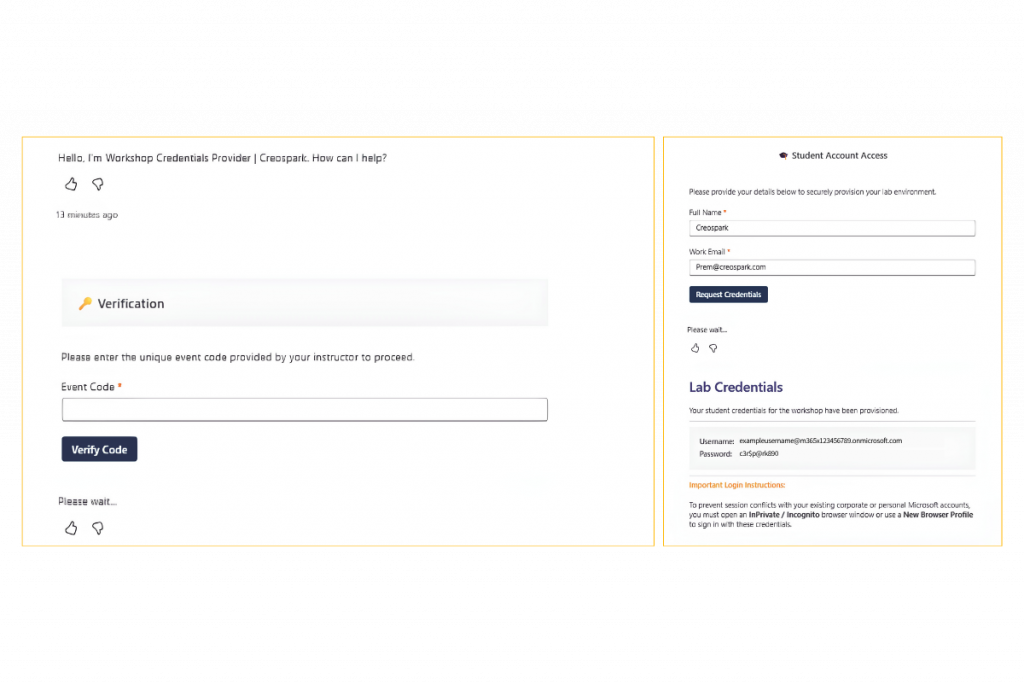
The experience starts when a user asks for workshop access or credentials. The conversation first routes to an EventCode topic, where the attendee is shown an adaptive card and asked to enter a workshop code.
For example, approved codes can be tied to sessions such as Agent in a Day and Automation in a Day. The agent checks the submitted code against that approved list before moving forward.
Once the code is confirmed, the conversation moves to a second topic called Student Account Assigner. Here, the attendee enters identifying information such as name and email address using another adaptive card.
Behind the scenes, an agent flow checks the credential inventory, identifies the next available account, marks it as assigned, and returns the credentials to the attendee. This helps ensure each participant receives an available credential without manual intervention.
What the Build Looked Like
The build itself followed a clear, structured flow inside Copilot Studio and Power Automate.
1. Create the main topic and define trigger phrases
We started by creating the primary topic in Copilot Studio and adding trigger phrases such as “I need credentials,” “Get started,” or “Workshop access” so the agent could recognize requests and begin the process.
2. Add an adaptive card to capture the event code
After the trigger node, we added a message node that displayed an adaptive card with a text input field for the attendee’s workshop code. This kept the interaction structured and ensured the value could be passed cleanly to the next step.
3. Validate the workshop code with Power Automate
Once the attendee submitted the adaptive card, a Power Automate flow checked the code against the approved list of workshop codes and returned whether the code was valid.
4. Route valid users to the Student Account Assigner topic
If the code was valid, conditional logic sent the attendee to the Student Account Assigner topic. That second topic displayed another adaptive card to capture the attendee’s first name, last name, and email address.
5. Assign the next available credential
A second Power Automate flow read the credential inventory from the Excel file in SharePoint, identified the next available account, marked it as assigned, and returned the username and password back to the agent.
Testing the Experience Before Publish
Before publishing the agent, we tested the full experience in the Copilot Studio test panel to confirm that the trigger phrases, adaptive cards, topic routing, and Power Automate flows were working as expected.
In the first phase, the agent responded to a user prompt by displaying the event code input card and prompting the attendee to enter a valid workshop code.
In the second phase, once the event code was validated, the agent moved to the next topic, displayed the attendee information card, ran the credential assignment flow in the background, and returned the assigned credentials.
Business Benefits of Automating Workshop Credential Assignment
What started as a workshop delivery issue turned into a useful example of where Copilot Studio can create immediate value. This solution helps reduce setup delays, prevent duplicate assignments, improve consistency, and create a smoother experience for both organizers and attendees.
More importantly, it shows that some of the best AI use cases are not always flashy. Often, they are practical fixes to recurring operational problems that teams have simply learned to work around.
That is where this kind of solution becomes powerful. It removes manual handling, supports a better user experience, and gives event teams a more reliable process without introducing unnecessary complexity.
How to Identify Practical Copilot Studio Automation Use Cases
There is a tendency to think about AI in terms of massive transformation programs. But sometimes the real opportunity is much simpler than that. It is about spotting a repetitive, manual process that slows people down and asking whether the tools you already own can solve it more effectively.
In this case, they could. Copilot Studio provided the experience layer. Power Automate handled the process logic. SharePoint and Excel supported the credential source. Together, they created a lightweight solution that improved how workshops are delivered.
That is often the best place to start: not with abstract AI ambition, but with a real problem, a clear workflow, and a practical outcome.
Frequently Asked Questions
1.What is a Copilot Studio agent used for in workshop automation?
A Copilot Studio agent can guide attendees through a structured workflow, collect required information, validate event codes, and trigger automation flows that assign workshop credentials.
2.Can Copilot Studio work with Power Automate?
Yes. Copilot Studio can call Power Automate flows to perform backend tasks such as validation, data lookup, account assignment, and status updates.
3.Can workshop credentials be managed using SharePoint and Excel?
Yes. For lightweight scenarios, an Excel file stored in SharePoint can act as a simple credential inventory. Power Automate can read the file, identify available accounts, update assignment status, and return credentials to the agent.
4.Why use adaptive cards in Copilot Studio?
Adaptive cards provide a structured way to collect user input, such as workshop codes, names, and email addresses. They reduce free-text errors and create a cleaner user experience.
5.What business problems can Copilot Studio solve?
Copilot Studio can help automate repetitive internal processes such as onboarding, service requests, training access, approvals, FAQs, and operational workflows.