Author
Kunaal Sharma

How can legal teams automate workflows using Copilot and Power Automate?
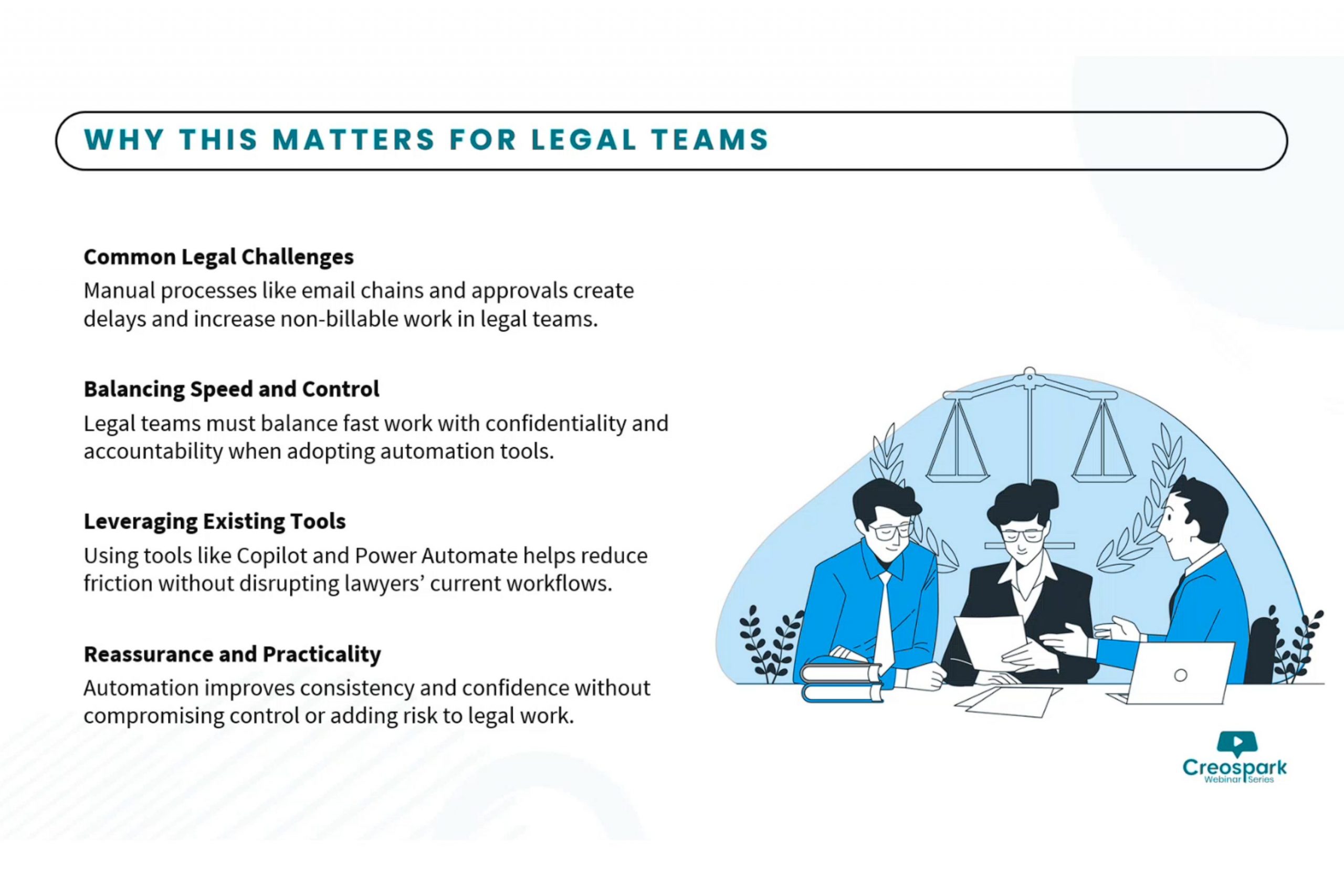
Legal teams today are under increasing pressure to move faster, manage growing workloads, and maintain accuracy all without scaling headcount at the same pace.
In our recent webinar, we explored how organizations can use Microsoft Copilot within Power Automate to streamline everyday legal workflows without overcomplicating the process.
This wasn’t a session about governance frameworks or long-term transformation strategies. Instead, the focus was simple: how to start using automation in practical, real-world legal scenarios today.
Why Legal Teams Should Start with Automation
Legal work often involves repetitive, document-heavy processes that consume time but follow predictable patterns.
This makes them ideal candidates for automation.
Rather than attempting large-scale transformation, the session emphasized starting with high-volume, repeatable workflows such as:
- Matter intake processes
- Contract review routing
- Approval workflows
- Document classification and storage
These workflows don't require complex systems; they require clarity, consistency, and the right tools.
The Role of Copilot in Workflow Design
One of the most powerful takeaways from the session was how Copilot simplifies workflow creation.
Instead of building flows manually from scratch, legal teams can describe what they want in plain language and Copilot translates that into structured automation logic.
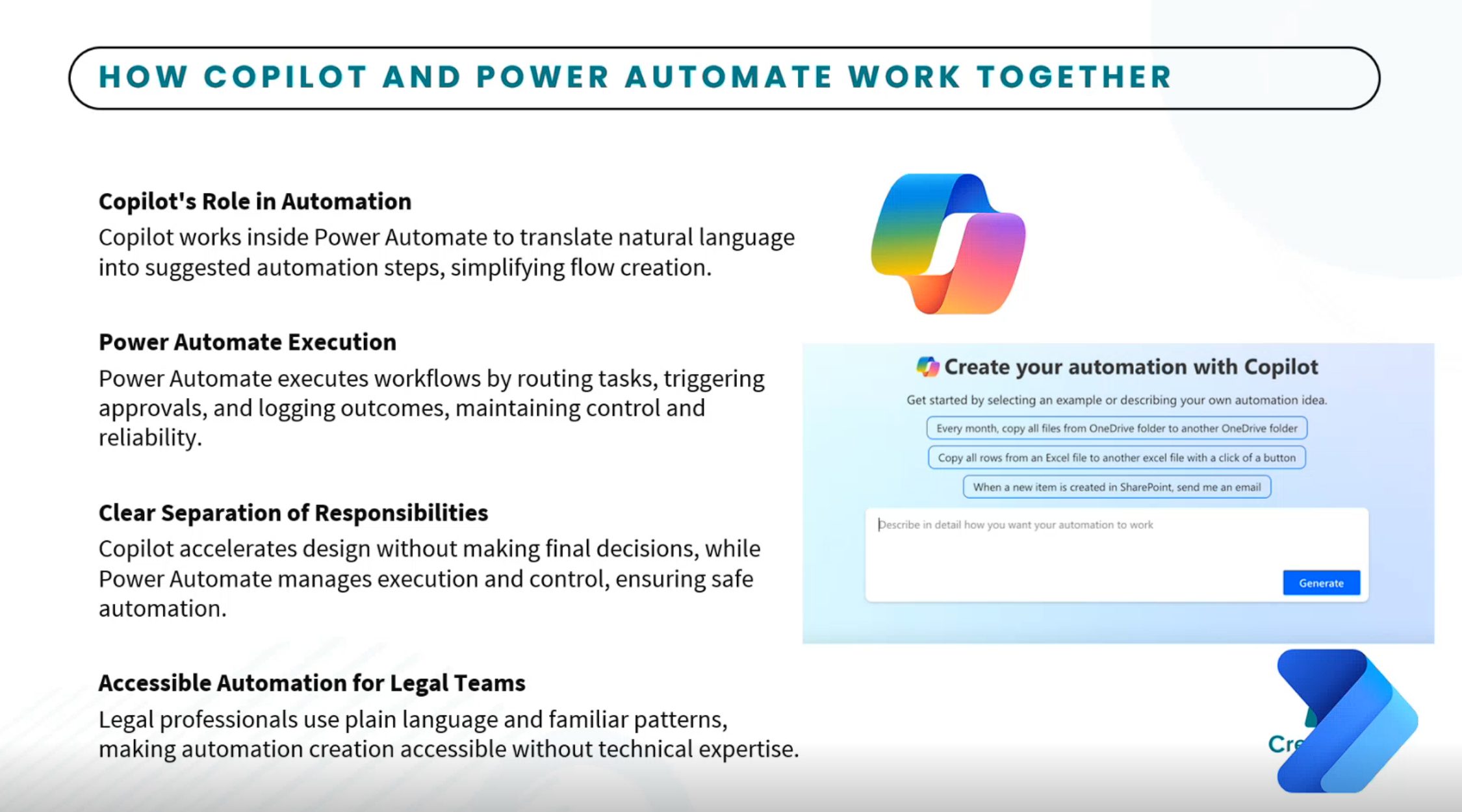
Here’s how the roles break down:
- Copilot acts as a design assistant
- Power Automate executes workflows and maintains logs
- Legal teams stay in full control of decisions and outcomes
This approach lowers the barrier to entry, especially for non-technical teams who want to experiment with automation without relying heavily on developers.
Live Demo:Building a Legal Intake Workflow
To bring this to life, the session included a step-by-step demo of a legal intake workflow using:
- Microsoft Forms for request submission
- SharePoint for document storage
- Power Automate for workflow execution
- Copilot for summarization and classification
What the workflow demonstrated:
- Capturing structured intake requests
- Automatically triggering workflows on submission
- Using AI prompts to summarize and classify legal requests
- Storing and organizing documents in SharePoint
- Routing requests for review and approval
The demo also covered practical aspects like troubleshooting flows, handling errors, and refining AI prompts for better outputs. Watch the full webinar here.
Start Small, Then Scale
A key theme throughout the webinar was avoiding over-engineering.
Instead of trying to automate everything at once, the recommended approach is:
- Start with one workflow
- Test and learn from real usage
- Improve based on feedback
- Gradually expand to additional processes
This iterative approach reduces risk and helps teams build confidence with automation over time.
Copilot: Acceleration, Not Replacement
The session also clarified an important point about the role of AI in legal operations and concern's of it replacing decision making.
That's not the role Copilot plays.
- It accelerates workflow design
- It reduces manual setup
- It suggests automation steps
But:
- It does not approve requests
- It does not make legal decisions
Legal professionals remain fully in control.
Copilot simply helps teams work more efficiently by simplifying workflow design, generating suggestions, and supporting repetitive administrative tasks. This balance between AI assistance and human oversight helps organizations adopt automation while maintaining trust and control.
Common Questions Answered
Do I need technical expertise to build these workflows?
No. You can describe workflows in plain language using Copilot, which generates the initial structure for you.
Will automation reduce control over legal processes?
No. All approvals and decisions remain human-controlled. Automation only handles routing, tracking, and execution.
What types of legal processes are best suited for automation?
- Intake and triage
- Contract review and approvals
- Document handling
- Status tracking and reporting
Can outputs (like intake forms) be converted into documents?
Yes. You can generate Word documents from data and convert them to PDFs as part of the workflow.
Can Power Automate interact with files in SharePoint?
Yes, it can read from files, trigger scripts, and process data. For UI-based actions (like opening files visually), desktop flows can be used.
The overall message of the webinar was clear
Legal automation does not need to begin with large, complicated transformation projects. By combining Microsoft Copilot with Power Automate, organizations can start with practical workflows that reduce manual effort and improve operational efficiency. The session reinforced the value of taking an incremental approach, focusing on continuous improvement, and using AI as a support tool rather than a replacement for legal expertise. With the right starting point and a willingness to iterate, legal teams can gradually build smarter and more scalable processes over time.