Author
Rinchen Kalsang
There are many benefits of adopting Microsoft 365 Copilot for organizations, and you can find productivity gains in features much simpler than advanced agents or customized automation. For one such feature, consider: Scheduled Prompts.
Scheduled prompts take Copilot from taking passive actions directed by the user, to taking initiative. Instead of waiting for users to ask for a summary, an update, or a reminder, Copilot delivers them at just the right time. This is a shift that can remove friction and get AI-powered knowledge into automated workflows, creating repeatable value across teams.
1) What Copilot Scheduled Prompts Are & Why They Matter
Microsoft Copilot scheduled prompts are automated reminders created to run daily, weekly, or monthly on Microsoft Teams, Office.com, and Outlook.
With these prompts, employees are able to keep track of their scheduled events and receive AI-generated summaries, reminders, and insights without explicit prompts.
Copilot solves three major workplace challenges:
- People forget to ask Copilot.
- Information arrives too late.
- Employees are overloaded with context switching.
What Scheduled Prompts Are NOT
- Scheduled prompts are not Power Automate flows or autonomous agents
- They do not take actions or trigger multi-step workflows
- They deliver recurring, read‑only insights grounded in your Microsoft 365 data
2) Scheduled Prompts Capabilities
Scheduled prompts are ideal for:
- Daily meeting prep
- Email triage and prioritization
- Weekly project summaries
- “What did I work on?” recaps
- Document or SharePoint change monitoring
- Social or brand monitoring (for Marketing)
- Pipeline or customer health snapshots
- Task, reminder, and follow‑up automation
These prompts are great for work that is based on structured, predictable knowledge, and tasks that employees repeat every day or week.
3) Where Scheduled Prompts Work
Scheduled prompts can be created and received in:
- Microsoft Teams (Work tab)
- Microsoft Office
- Outlook Web and Desktop
Teams & Outlook currently offer the most complete scheduling interface.
Once created and run, outputs then appear as new Copilot messages, with optional email notifications.
4) How the Backend Works
When a user creates their first scheduled prompt, Microsoft automatically provisions the necessary Power Platform environment behind the scenes.
This ensures:
- Prompts run reliably
- Schedules persist even if the user is offline
- Results are grounded in Microsoft Graph
This backend layer is invisible to users, but it’s essential to how Copilot executes recurring tasks.
5) Business Value of Scheduled Prompts
Scheduled prompts is a cool feature, but beyond novelty it has concrete business value.
Predictable productivity: This tool supports productivity as employees are able to get the information they need on a regular basis, such as daily and weekly highlights, project updates, and so on, without having to ask every time.
Reduced cognitive load: It’s easy for employees to get overwhelmed with all the emails, messages, and files they have to keep track of. Copilot can reduce this cognitive load, pulling together necessary information from these notifications, documents, and calendars.
Immediate automation: No workflow-building skills are required.
Write a prompt → schedule → done.
Supports AI readiness: Scheduled prompts help teams build habits for AI automation and are an early step toward more advanced Copilot features and agents.
6) Licensing Requirements & Limitations
Licensing Needs
To use scheduled prompts, users must have:
- A Microsoft 365 Copilot license
- Optional Connected Experiences enabled (tenant or user level)
Functional Limitations
- Scheduled prompts cannot be edited, they must be recreated
- Users are limited to 10 active scheduled prompts
- Some interfaces limit recurring runs to 10–15
- The web version may not show scheduling options
- Admins can disable the feature using Cloud Policy or Copilot settings
Governance Notes
- Prompts rely on Microsoft Graph and Power Platform
- DLP, privacy, or Power Platform restrictions may impact behavior
- Users with OCE disabled cannot use scheduling at all
7) Practical Scheduled Prompts
These are simple examples your team can adopt immediately:
Daily Email Triage (Exec / Manager)
“Review my emails from the past day, rank urgency 1–5, and draft responses for anything above a 3.”
Daily Meeting Prep (All roles)
“Summarize today’s meetings, including agendas, attendees, and any documents I need to review.”
Weekly ‘What Did I Work On?’ (Creospark internal example)
“Look at my calendar, emails, and documents and summarize what I worked on or completed this week, broken down by day.”
Weekly Project Update Digest
“Summarize project updates across my email, chats, and meetings this week and list open action items.”
Customer Health Overview (Customer Success)
“Summarize customer health‑score changes this week and flag accounts at risk.”
8) Role-Based Use Cases
Executive Role
Executives need to have visibility into decisions, escalations, and cross-departmental activity, all in a timely manner. With brief summaries and actionable information from Copilot on a regular basis, scheduled prompts can increase the likelihood of firm executives making and acting on decisions, reducing the time needed to look through emails, documents, or meeting notes.
Example:
“Summarize key decisions, escalations, and leadership‑level updates from the past week.”
Manager Role
Managers need to know how teams are doing, blockers that are causing delays, and general morale, so sorting this into a weekly scheduled prompt can help.
Example:
“Provide a weekly summary of team accomplishments, blockers, and follow‑up items.”
HR / People Ops Role
HR finds feedback channels useful, and gathering information from them can be enhanced with automated summaries of trends in employee attitude or Copilot detecting or flagging issues as important.
Example:
“Summarize employee feedback trends from the past week and flag emerging sentiment patterns.”
Marketing Role
Marketing teams need to monitor campaign performance, brand mentions, and general social opinion towards the brand. Recurring Copilot summaries can give insight into changes in engagement and attitude.
Example:
“Summarize weekly performance changes in active campaigns and flag unusual shifts.”
IT / Admin Role
Admin staff need to be continually aware of the health status of the system, changes that have occurred, and alerts. Scheduling ensures that problems are detected early.
Example:
“Summarize all system alerts, outages, or incidents from the last 24 hours, categorized by severity.”
Sales Role
Sales teams can be automatically reminded about pending deals or when accounts go cold, ensuring quick follow-up and avoiding lost opportunities.
Example:
“List deals that haven’t been contacted in 7+ days and identify high-value opportunities needing attention.”
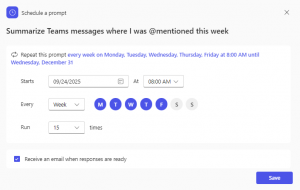
9) How to Create & Manage Scheduled Prompts
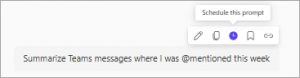
- Write the prompt
In Teams, Outlook, or Office.com/chat.
- Hover and schedule
Select “Schedule this prompt” (clock icon).
- Choose settings
- Date
- Time
- Daily / Weekly / Monthly
- Optional email notifications
- Optional recurrence limit
- Save the schedule
Then Copilot runs it automatically.
Managing prompts:
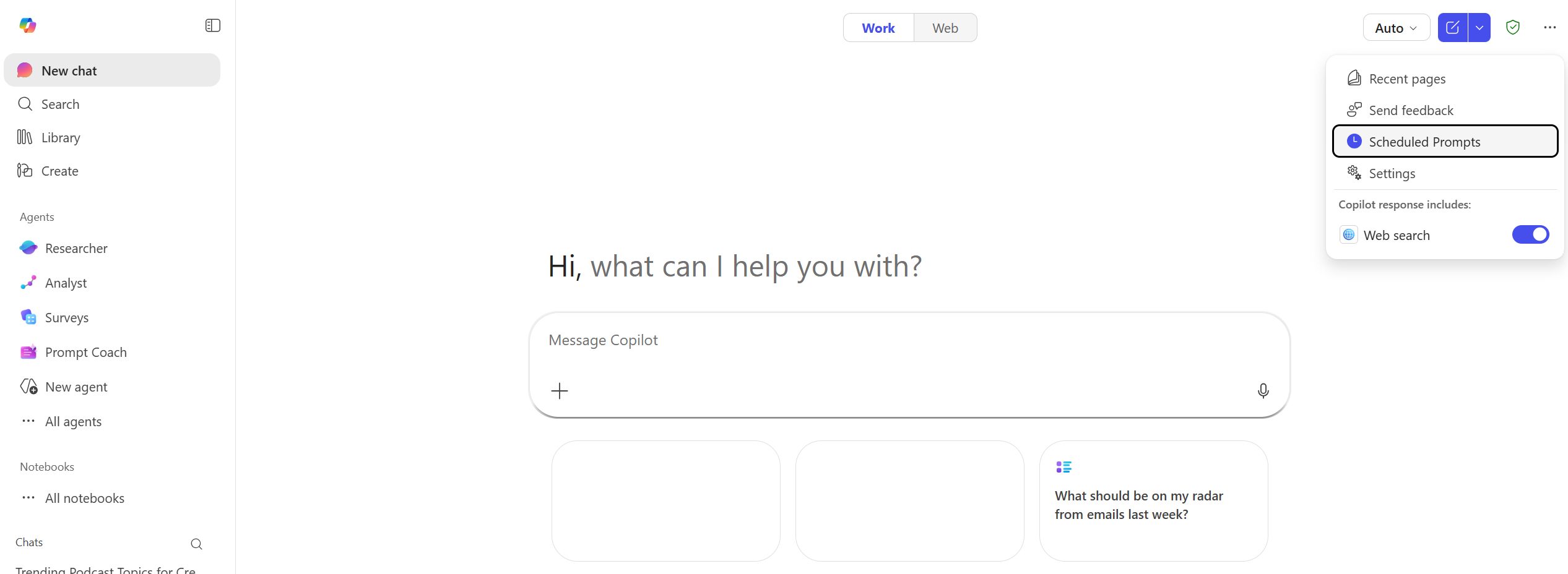
Go to Copilot → … → Scheduled prompts to run, pause, delete, or review them.
Troubleshooting:
- Ensure Copilot license is active
- Ensure Optional Connected Experiences are enabled
- Try Teams or Outlook if the UI doesn’t show scheduling