
Author
Nirav Raval

Exciting Update
Microsoft Lists Forms Now Support Conditional Branching for Smarter SharePoint Forms!
Show the Right Fields at the Right Time Without Power Apps
TDLR Microsoft Lists forms now support conditional branching, allowing teams to show or hide fields based on a user’s previous response. For simple SharePoint request forms, intake forms, onboarding checklists, and incident reports, this gives users a cleaner no-code experience without needing to build a custom Power Apps form.
The Quiet Upgrade That Changes How You Build List Forms
Microsoft Lists forms now support conditional branching, and the change is more useful than its quiet release suggests. Instead of showing every field to every submitter, you can show only the fields that match a user’s earlier answer. For everyday SharePoint scenarios such as request forms, intake forms, incident reports, and onboarding checklists, that means cleaner forms without moving to Power Apps.
The capability is simple: show or hide fields in a Lists form based on the answer to an earlier Choice question. No JSON formatting, no custom Power Apps form, and no separate publishing process. The form adapts as the submitter moves through it, so users only see the fields that are relevant to their request.
To understand why this matters, consider what field-level visibility used to require. Before this update, there was no native way to hide or show individual fields in a SharePoint list form based on user input. You had two options: build a Power Apps canvas app to replace the default form entirely or write custom column formatting JSON on each column individually. Both approaches demanded technical skill, version management, and ongoing maintenance overhead for what is, in most cases, a straightforward requirement. Conditional branching in Lists forms eliminates that overhead entirely. The same outcome is now achievable by anyone who can configure a list, with no code and no app to maintain.
For many day-to-day SharePoint use cases, this closes the gap between a cluttered default form and a fully custom Power Apps form. Teams can keep the simplicity of Microsoft Lists while still giving users a more guided experience.
What Shipped in This Update
Conditional branching was part of a larger set of Lists forms improvements. Here is everything that landed:
- Conditional branching – show or hide questions based on previous answers
- New creation experience – create a form directly from Lists home, SharePoint, or Teams without first building the list manually
- Form scheduling – set a start and end date to control when the form accepts responses
- Response notifications – get notified when someone submits
- Additional field types – Attachments, Image, Location, and Lookup columns now supported in forms
- Logo branding – add a logo to the form header
This article focuses on conditional branching – the feature with the most immediate practical impact for form design.
How Conditional Branching Works
Conditional branching is configured at the field level in the Lists form designer. You choose a field, define when it should appear, and tie that visibility to a specific value selected in an earlier Choice field. This is field-level visibility control – something that simply did not exist natively in SharePoint list forms before this update. Every field in a Lists form can now have its own conditional display rule, configured through a point-and-click interface, without touching JSON or Power Fx.
At this stage, branching conditions are based on Choice column values. When a user selects a matching choice, the related fields appear, fields tied to other choices remain hidden.
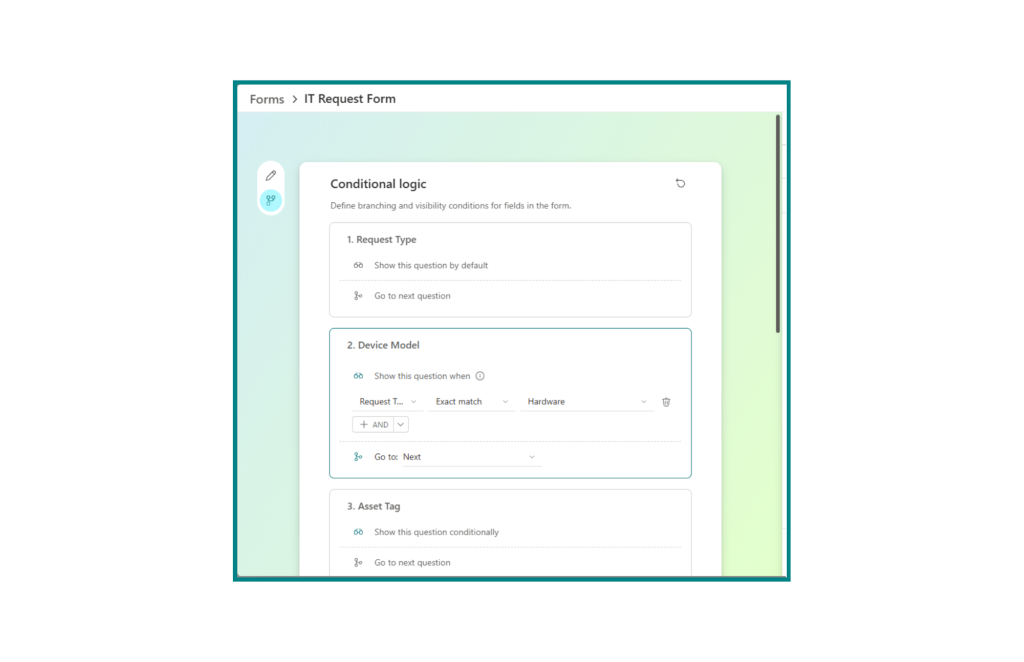
One important distinction: this applies to the dedicated Lists forms experience that you access from the Forms option in a list. It does not change the default new or edit item panel that opens directly from the list grid. Those are separate from surfaces.
Sample Use Case: IT Request Form
A simple branching setup usually starts with one controlling Choice column, followed by the fields that should appear for each choice. Name the choices clearly, group related fields together, and test each branch before sharing the form link with users.
This scenario is simple, realistic, and demonstrates the value immediately. A team uses a SharePoint list to handle internal IT requests.
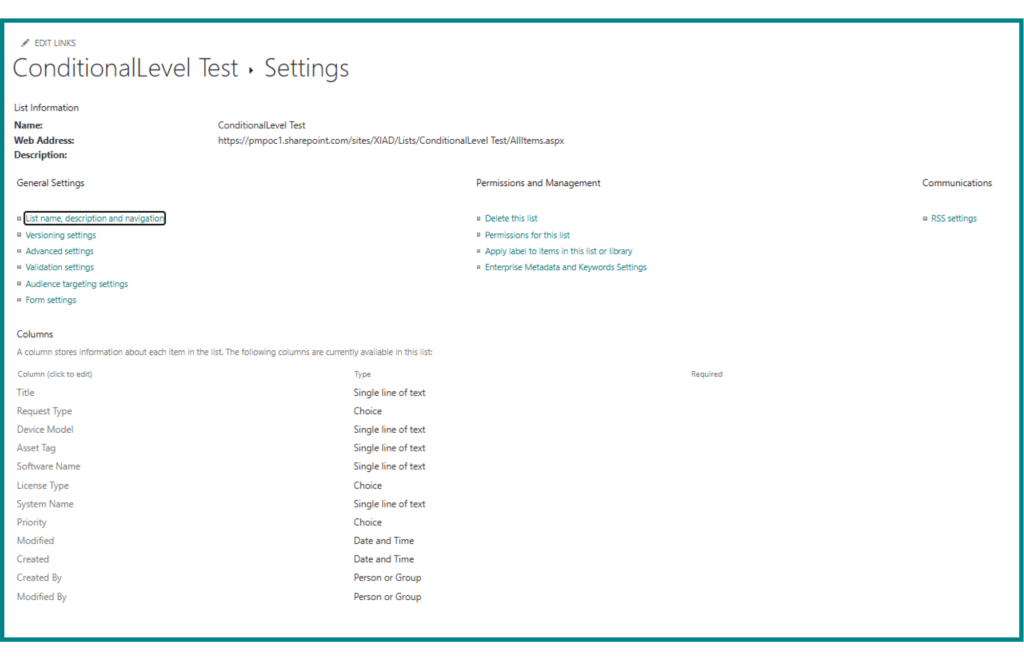
List Columns
- Request Type (Choice): Hardware, Software, Access, Other
- Device Model (Text): shown only when Request Type = Hardware
- Asset Tag (Text): shown only when Request Type = Hardware (replacement scenario)
- Software Name (Text): shown only when Request Type = Software
- License Type (Choice): shown only when Request Type = Software
- System Name (Text): shown only when Request Type = Access
- Priority (Choice): always visible
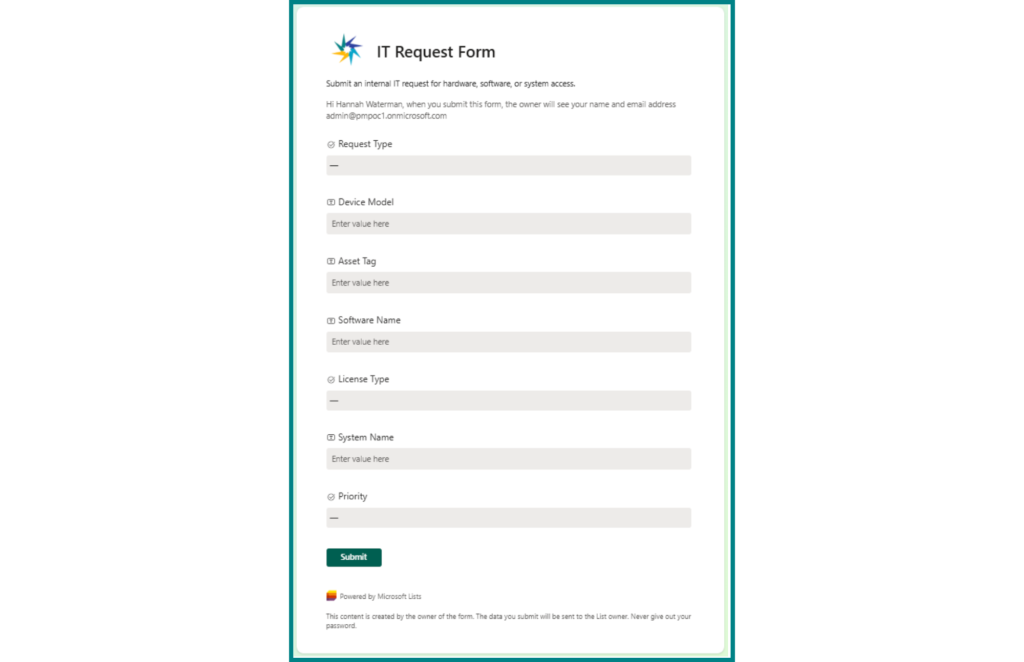
Before Conditional Branching
All request-specific fields displayed for every request, regardless of type. Users filling out a Hardware request were confronted with Software Name, License Type, and System Name even though those fields did not apply to them. The form was noisy and confusing, and it required guidance documentation just to explain which fields to complete.
After Conditional Branching
A user selecting Hardware sees: Request Type, Device Model, Asset Tag, Priority. Three fields. Everything relevant, nothing else. The same form delivers a clean two-to-three field experience for each request type without any duplication or custom code.
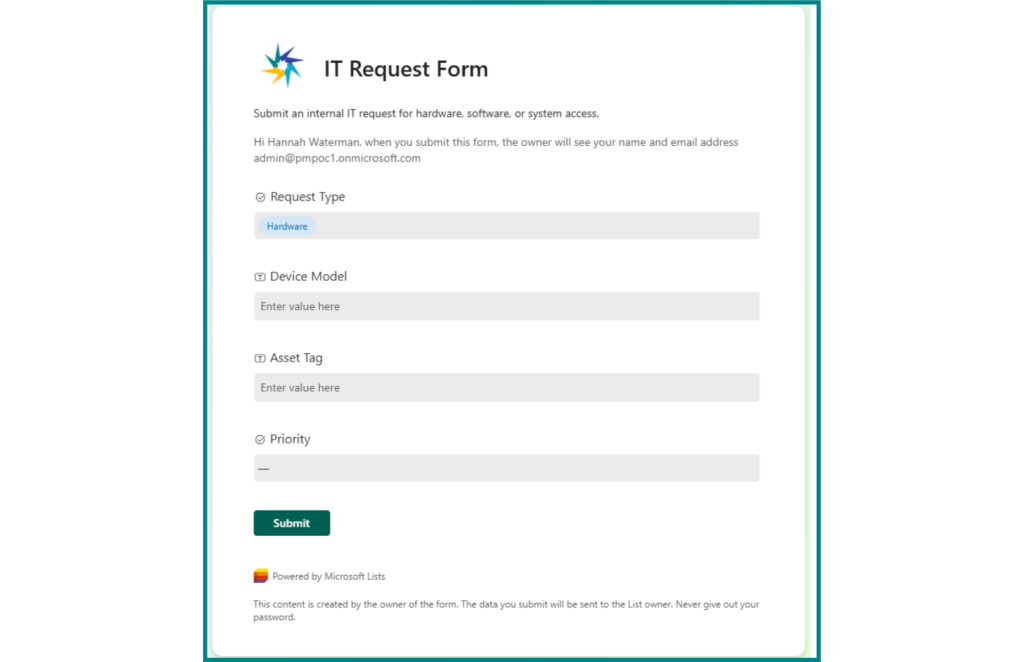
Result: The result was immediate: submitters saw fewer irrelevant fields, stopped guessing which fields applied to them, and provided cleaner data back to the list. Nothing changed in the process itself; the improvement came from showing the right fields at the right time.
Current Limitations
The branching designer supports any field in the form as the controlling field, with six operators available for conditions: Exact match, Not equal, Contains, Does not contain, Is empty, and Is not empty. Multiple conditions can be combined using AND logic.
The following column types can be added to a SharePoint list via list settings but are not supported in the Lists forms designer at all – they will not appear in the form or in the branching configuration:
- Managed Metadata – Term Store columns are not recognized by the branching designer
- Calculated – Columns that derive their value from a formula are not surfaced in forms
- Task Outcome – Not available in the Lists forms experience
- External Data – Columns connected to an external content type are not supported in forms
For lists that rely on any of these column types as part of their form logic, Power Apps remains the only option until Microsoft expands support.
What Conditional Branching Does Not Replace
This feature covers the common middle-tier scenario well. It does not replace Power Apps for complex cases. Use Power Apps when you need:
- Multi-field conditional logic – where visibility depends on combinations of two or more fields
- Role-based field visibility – showing different fields to different users based on their role or group membership
- Cascading drop downs – filtering a lookup based on a prior selection
- Computed or pre-filled defaults – setting field values automatically based on other inputs
- Custom validation logic – preventing submission until complex business rules pass
- Form-level permissions – showing entirely different form layouts to different audiences
For everything else – the “just show this field when the user picks that option” scenarios that make up the majority of request and intake forms – Lists forms with conditional branching is now the right first choice.
Choosing the Right Approach
Here is a quick reference for when to use each approach to conditional field visibility in SharePoint:
| Scenario | Recommended Approach | Notes |
|---|---|---|
| Show/hide field based on a Choice selection | Lists Forms – Conditional Branching | No code required |
| Multiple conditions combining two or more fields | Power Apps Canvas Form | If-else logic in Power Fx |
| Role-based field visibility | Power Apps Canvas Form | User() or group membership check |
| Cascading dropdown filters | Power Apps Canvas Form | Filter() on related table |
| Column-level visibility in the default list panel | Column Formatting JSON | =if() formula on the column |
| Complex validation before submit | Power Apps Canvas Form | OnSubmit logic in Power Fx |
| Simple form, no developer, broad audience | Lists Forms | Shareable via link; no list access required |
Frequently Asked Questions
What is conditional branching in Microsoft Lists forms?
Conditional branching lets you show or hide fields in a Microsoft Lists form based on a user’s earlier response. This helps simplify the form experience because users only see the fields that apply to their selection.
Can Microsoft Lists forms show or hide fields based on a user’s answer?
Yes. You can configure visibility rules in the Lists forms designer so that specific fields appear only when a user selects a matching answer. This is useful for intake, request, support, and onboarding forms.
Do I need Power Apps for conditional fields in SharePoint lists?
Not always. If the requirement is simple field visibility based on earlier answers, Microsoft Lists forms are now a strong first choice. Power Apps is still better for complex logic, role-based visibility, cascading dropdowns, advanced validation, and highly customized layouts.
What column types are not supported in Microsoft Lists forms?
Managed Metadata, Calculated, Task Outcome, and External Data columns are not currently supported in the Lists forms designer. These column types can exist in the list, but they will not appear in the form or branching configuration.
Does conditional branching work in the default SharePoint list form?
No. Conditional branching applies to the dedicated Microsoft Lists forms experience. It does not change the default new or edit item panel that opens directly from the SharePoint list grid.
When should I use Power Apps instead of Microsoft Lists forms?
Use Power Apps when your form needs advanced business logic, role-based experiences, custom validation, pre-filled values, cascading dropdowns, or heavily customized layouts. For simple show-or-hide field scenarios, Microsoft Lists forms are usually the easier place to start.