
AI in SharePoint
During the Public Preview, AI in SharePoint requires several prerequisites before users can access it. First, each user must have an active Microsoft 365 Copilot license. AI in SharePoint is included with this license during preview and at General Availability, with no extra charge.
By default, AI in SharePoint is turned off for all tenants. A PowerShell opt-in is required by a SharePoint Administrator or Global Administrator. Admins can enable the feature tenant-wide or only for selected SharePoint sites. Organizations that already enabled the earlier Knowledge Agent preview do not need to opt in again.
For the full preview experience, Microsoft recommends enabling Anthropic as an approved AI sub-processor in the Microsoft 365 Admin Center. This allows access to advanced reasoning models for multi-step planning and content execution. If Anthropic is not enabled, SharePoint uses a fallback model with potentially reduced capabilities. In EU and UK tenants, Anthropic is disabled by default and must be manually enabled.
To configure access, admins must use SharePoint Online Management Shell version 16.0.26615.12013 or later. If errors occur, older conflicting SharePoint modules should be removed and the latest module installed.
Access is managed through KnowledgeAgentScope settings:
- AllSites: Enable on every site
- IncludeSelectedSites: Enable only selected sites
- ExcludeSelectedSites: Enable all except selected sites
- NoSites: Disable everywhere (default)
Admins can manage up to 100 site URLs using KnowledgeAgentSelectedSitesList, with options to overwrite, append, or remove entries.
For multi-geo tenants, the configuration must be run separately in each geo region. AI in SharePoint is currently unavailable in GCC, GCC High, DoD, and air-gapped environments.
Create a document library with AI
AI in SharePoint lets users create a fully configured document library by simply describing its purpose — no manual column or metadata setup needed.
How It Works
- Describe the purpose — e.g., “I need a library for vendor invoices.”
- Upload a sample file (optional) — Helps AI recommend better metadata fields.
- AI generates the configuration — Proposes a library name, description, and metadata columns.
- Library is created automatically — Including AI-powered columns that auto-fill metadata (names, dates, categories, etc.) from uploaded files.
Use Cases
- Finance — Invoices, expense reports, financial archives
- Legal — Contracts, compliance records, policy libraries
- Project Management — Deliverables, specs, milestone docs
- HR — Employee records, onboarding files, training materials
Prerequisites
- Active Microsoft 365 Copilot license
- Tenant/site enabled for AI in SharePoint preview
- Permission to create document libraries
AI-powered columns use SharePoint’s Autofill engine, so all supported file types work for metadata extraction during setup and future uploads. This feature helps organizations build structured, searchable libraries faster with minimal manual effort.
Create sites with AI
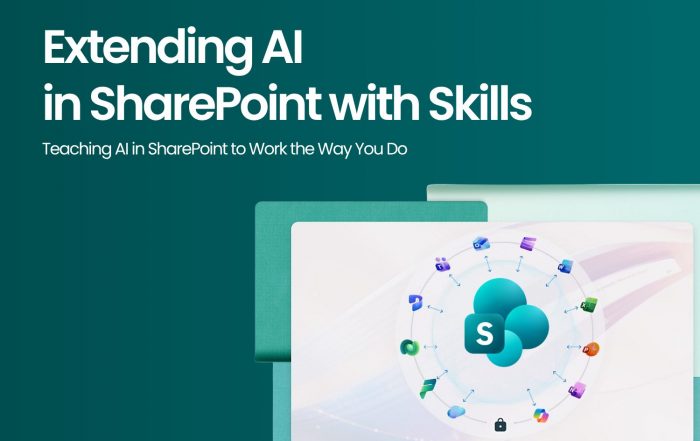
Extending AI in SharePoint with Skills
SharePoint AI now goes beyond generic responses by learning your organization’s processes, terminology, and standards. Three core capabilities were announced:
- Shared Context — Add site-level guidance (naming conventions, writing style, internal rules) that automatically assists all site users.
- Skills — Convert repeatable workflows into reusable AI processes using plain language (e.g., metadata enforcement, proposal assembly).
- Content Generation — Create finished Word, Excel, PowerPoint, and structured reports directly in SharePoint.
All configurations are stored as editable Markdown files in an Agent Assets library, protected by existing SharePoint permissions, retention, and audit controls.
Ideal for: Legal, financial services, healthcare, and other governance-heavy industries.